
Streaming live television on a Mac has never been more flexible, and many viewers begin their journey by testing a service before committing to a paid plan. This Free Trial IPTV For Mac Guide 2026 is designed to walk you through everything you need to know — from how trials actually work to setting up an app on macOS, checking compatibility, and staying safe while you explore your options. Internet Protocol Television (IPTV) delivers TV channels and on-demand content over your internet connection instead of traditional cable or satellite, and a free trial gives you a low-risk way to evaluate quality, channel selection, and reliability before you pay anything.
Whether you are a beginner who simply wants to watch live sports and movies, or an advanced user looking to fine-tune buffering and audio settings, this guide covers the full picture. We will explain the technology behind IPTV, the legal and safety steps you should never skip, the apps that run smoothly on macOS, and practical performance tips. By the end, you will understand exactly how to use a free trial wisely and what to verify before choosing a long-term provider. If you want a deeper background on the underlying technology, the Wikipedia article on IPTV is a solid starting point.
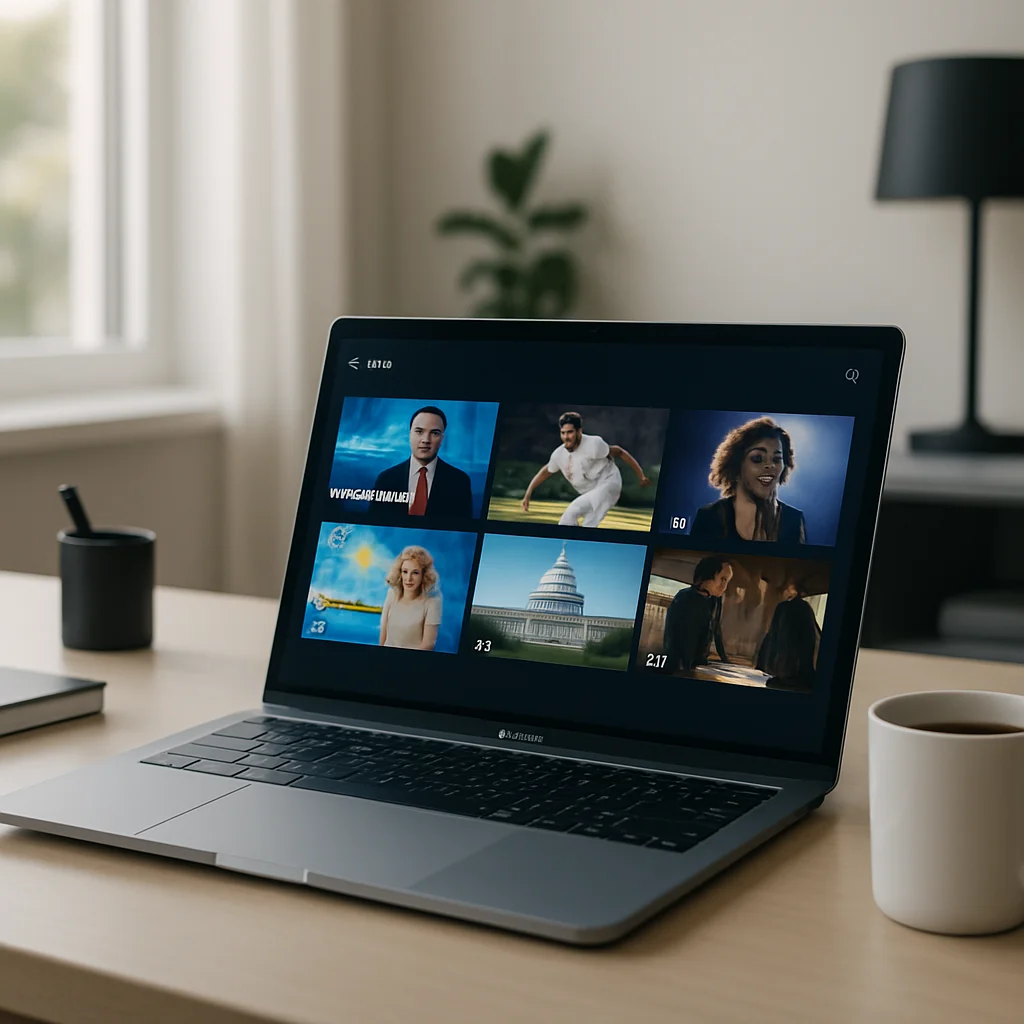
What a Free Trial IPTV For Mac Guide 2026 Really Means
A free trial is a short access window — often ranging from a few hours to several days — that lets you stream a provider's catalog without paying upfront. The goal is simple: you get to see whether the service delivers stable streams, a good channel lineup, and acceptable video quality on your specific hardware and internet connection. On a Mac, this matters because macOS handles certain media players and apps differently than Windows or Android devices, and a trial reveals whether your chosen app runs smoothly.
It is important to set realistic expectations. A trial is a preview, not a guarantee. Some services offer a true no-cost trial with no payment details required, while others ask for a card but promise a refund within a defined period. Understanding the difference protects you. Throughout this Free Trial IPTV For Mac Guide 2026, we encourage you to verify legality, content rights, and refund policies before sharing any personal or payment information. A legitimate provider will be transparent about what its trial includes and how to cancel.
How IPTV Works on a Mac
IPTV streams television content as data packets over the internet, similar to how a website or a video on a streaming platform loads. Instead of receiving a broadcast signal through an antenna or cable, your Mac requests video streams from a server, decodes them, and plays them back in real time. The two most common formats you will encounter are M3U playlists and Xtream Codes API logins. A free trial typically provides one of these so you can load the content into a compatible app.
The Core Components
To stream IPTV on macOS, three things work together. First, a stable internet connection delivers the data. Second, an IPTV player app receives and decodes the stream. Third, the provider's server hosts the channels and on-demand library. When you start a free trial, the provider gives you credentials — either a downloadable M3U URL or a username, password, and server portal — that connect your player to their catalog.
Why macOS Needs the Right Player
Not every IPTV app is built for Mac. Apple's ecosystem favors native applications optimized for the hardware, so choosing a player that runs reliably on macOS is essential for smooth playback. Popular options include media players that support M3U and the open-source VLC, which is widely trusted and available across platforms. Apple also provides general guidance on installing apps safely, which you can review through Apple Support. During a trial, test more than one player if your first choice stutters — the issue is often the app, not the stream.
Key Features and Benefits
Understanding what to look for during a trial helps you judge a service fairly. The features below are the ones that most directly affect your viewing experience on a Mac.
- Channel variety: A broad lineup of live channels, including international and sports content, signals a well-stocked service. During a trial, check whether the channels you actually care about are present and stable.
- On-demand library: Many services bundle movies and series alongside live TV. A large, organized catalog adds value, but quality matters more than raw numbers.
- Streaming quality: Look for HD and 4K options. A trial is the perfect time to confirm whether your connection and the provider can sustain higher resolutions without constant buffering.
- Electronic Program Guide (EPG): A working EPG shows what is playing now and next, which makes browsing live channels far easier.
- Multi-device support: If you plan to watch on your Mac plus other devices, verify how many simultaneous connections are allowed.
- Customer support: Responsive, human support is a strong indicator of a reliable provider. Test it during the trial by asking a setup question.
As a neutral example of how these features come together, services such as SnopTV advertise 60,000+ live channels, 190,000+ movies and series, 4K Ultra HD quality, and 24/7 human support with plans starting around $12.99/month. That kind of breadth is useful to test during a trial so you can confirm the experience matches the promise on your own Mac.
Setup and Configuration on macOS
Setting up IPTV on a Mac is straightforward once you have your trial credentials. Below is a clear, step-by-step process that works for most M3U-based services.
- Confirm your trial details: When you sign up for a free trial, the provider sends either an M3U playlist URL or an Xtream Codes login (username, password, and server URL). Keep these handy.
- Choose a compatible player: Download a reputable IPTV player for macOS from a trusted source. VLC is a safe, free, cross-platform option that handles M3U files well. Other dedicated IPTV apps offer EPG support and a more TV-like interface.
- Load your playlist: In VLC, open the application, go to File, and select "Open Network" to paste your M3U URL. In dedicated apps, you typically add a new playlist and enter either the M3U link or your Xtream login.
- Wait for channels to load: The app fetches the channel list from the provider's server. This may take a moment depending on catalog size and connection speed.
- Test multiple channels: Open several live channels and a few on-demand titles to gauge stability, load times, and audio-video sync.
- Adjust settings if needed: If you notice buffering, lower the resolution within the app or close other bandwidth-heavy programs.
If you run into audio or video issues during setup, our IPTV audio sync fix guide walks through common troubleshooting steps that apply to Mac players too. For users who also stream on Apple mobile devices, the IPTV app setup guide for iPhone pairs well with this Mac walkthrough and uses the same credentials.
Using a VPN During Your Trial
Some viewers use a Virtual Private Network (VPN) to protect their privacy and secure their connection while streaming. A VPN encrypts your traffic, which can be helpful on shared or public networks. If you decide to use one, choose a reputable provider and confirm it does not throttle your speed enough to harm playback. You can learn how VPN technology works in general from the Wikipedia VPN overview. For device-specific VPN configuration ideas that translate to other platforms, see our IPTV VPN setup guide.
Device Compatibility Beyond the Mac
While this guide focuses on macOS, most people stream across more than one device, and your free trial credentials usually work everywhere the provider supports. Understanding compatibility helps you make the most of a trial. A single M3U URL or Xtream login can often be loaded on a Mac, an iPhone, a smart TV, a streaming box, and more — subject to the simultaneous connection limit.
- Apple ecosystem: macOS and iOS apps share the same login, so you can test on a MacBook and an iPhone or iPad in parallel.
- Smart TVs: Many TVs run IPTV apps directly. If you use a TCL set, our guide to watching live TV on TCL without cable shows the process.
- Streaming boxes: Fire TV, Nvidia Shield, and Formuler boxes are popular IPTV platforms. The Formuler box advanced guide covers setup for dedicated hardware.
- Single-board computers: Tinkerers can even run IPTV on a Raspberry Pi, as explained in our Raspberry Pi live TV guide.
Testing on multiple devices during a trial reveals whether the provider's connection limit suits your household and whether quality holds up across screens of different sizes.
Pricing and Plans: What to Expect After the Trial
A free trial is a stepping stone toward a paid subscription, so it helps to understand typical pricing structures before you commit. IPTV plans are usually billed monthly, quarterly, semi-annually, or annually, and longer commitments tend to lower the effective monthly cost. The trial period is your chance to confirm the service is worth that ongoing payment.
Common Pricing Models
- Monthly plans: Highest per-month price but maximum flexibility. Good for short-term needs like a single sports season.
- Multi-month and annual plans: Lower monthly cost in exchange for a longer commitment. Best value if you already trust the service after a trial.
- Multi-connection tiers: Plans that allow more simultaneous streams typically cost more but suit larger households.
As a neutral reference point, providers such as SnopTV list plans starting at $12.99/month, with the strongest value on longer terms — for example, a 15-month plan with two connections. Comparing the trial experience against the price is the smartest way to decide. You can review how different packages are structured on the IPTV pricing plans page and weigh the included channels, connections, and term length against your budget. For a broader framework on evaluating providers, our buyer's guide to choosing an IPTV provider is a useful companion read.
Tips for Best Performance on a Mac
Even the best service can stutter if your setup is not optimized. Use these tips during your free trial to get an accurate sense of real-world performance.
- Use a wired or strong Wi-Fi connection: Ethernet via an adapter delivers the most stable stream. If you must use Wi-Fi, sit close to the router and use the 5 GHz band.
- Check your internet speed: HD streaming generally needs at least 10–15 Mbps, and 4K can require 25 Mbps or more per stream. Run a speed test before judging quality.
- Close background apps: Large downloads, cloud backups, and other streaming apps compete for bandwidth. Pause them while testing.
- Update macOS and your player: Keeping your system and IPTV app current reduces compatibility bugs and improves decoding.
- Adjust the cache or buffer: Many players let you increase the network cache, which smooths playback on slightly unstable connections.
- Test at peak hours: Streaming quality can drop during evening peak times. Trial the service when you would normally watch to get a realistic impression.
If you plan to use IPTV mainly for live sports — a common reason people test trials — buffering during fast action is especially noticeable. Our guides to watching boxing with IPTV and F1 racing live streaming include performance pointers tailored to high-motion broadcasts that translate directly to Mac playback.
Legal and Safety Checklist
Before you start any free trial, it is essential to confirm that the service operates legally and protects your data. IPTV technology itself is completely legal, but the legality depends on whether the provider holds the proper rights to the content it distributes. Always do your due diligence. Reputable technology publications such as TechRadar regularly cover how to identify trustworthy streaming services, and reviewing such resources can help you avoid problematic providers.
| ✓ | Check | Why It Matters |
|---|---|---|
| ☐ | Confirm the service has content rights | Streaming content without proper licensing can be illegal in your region and may carry risks for the viewer. |
| ☐ | Review the legality in your country | Laws vary by location; verify that accessing the service complies with local regulations. |
| ☐ | Check the privacy policy | A transparent provider explains what data it collects and how it protects your information. |
| ☐ | Use secure payment methods | Trusted payment gateways protect your card details if you upgrade after the trial. |
| ☐ | Read the refund and cancellation policy | Knowing how to cancel or get a refund prevents unexpected charges after a trial. |
| ☐ | Avoid sharing unnecessary personal data | Legitimate trials rarely need more than an email; excessive requests are a red flag. |
Common Mistakes to Avoid During a Free Trial
Many first-time users make avoidable errors that lead to a poor trial experience or an unwise purchase. Being aware of these helps you evaluate any service objectively.
- Judging too quickly: A single buffering moment may be a temporary network issue. Test over a few sessions before deciding.
- Ignoring the device you will actually use: If you plan to watch mostly on your Mac, test on the Mac — not only on your phone.
- Skipping the support test: Reaching out to support during the trial reveals how responsive the provider really is.
- Overlooking the fine print: Some trials auto-convert into paid subscriptions. Always check whether you must cancel to avoid charges.
- Not checking content rights: A cheap or free offer that lacks proper licensing is not worth the risk.
Final Checklist Before Choosing
Once your free trial is complete, use this checklist to compare providers fairly and confirm the service meets your needs before paying. Taking a few minutes here saves you from buyer's remorse later.
| ✓ | Check | Why It Matters |
|---|---|---|
| ☐ | Device compatibility with macOS | Ensures the app runs smoothly on your specific Mac and version of macOS. |
| ☐ | Channel count and the channels you want | A large lineup is useful only if it includes the content you actually watch. |
| ☐ | Streaming quality (HD/4K) | Confirms the service delivers the resolution your screen and connection support. |
| ☐ | Number of simultaneous connections | Matters if multiple people in your home stream at the same time. |
| ☐ | Customer support responsiveness | Reliable, human support resolves issues quickly when something breaks. |
| ☐ | Free trial availability and terms | Lets you verify the experience before committing real money. |
| ☐ | Accepted payment methods | Secure, familiar payment options protect your financial information. |
| ☐ | Pricing relative to features | Helps you judge whether the plan offers fair value for your budget. |
| ☐ | Refund and cancellation policy | Provides a safety net if the service does not meet expectations. |
Frequently Asked Questions
Is using IPTV on a Mac legal?
IPTV technology is legal, and streaming on a Mac is perfectly fine. What matters is whether the provider holds the proper rights to the content it offers. Always choose services that clearly license their channels and content, and verify the rules in your own country.
Do I need a special app to use a free trial on macOS?
Yes, you need an IPTV player compatible with macOS. Free, trusted options like VLC handle M3U playlists well, while dedicated IPTV apps add features such as an EPG and a more polished interface. The free trial credentials work the same regardless of which compatible player you choose.
How long do IPTV free trials usually last?
Trial lengths vary widely, from a few hours to several days. Some providers offer a no-payment trial, while others ask for card details with a refund window. Always confirm the duration and cancellation terms before you begin.
Why is my stream buffering on my Mac?
Buffering is most often caused by a slow or unstable internet connection, peak-hour congestion, or competing background apps. Try a wired connection, close other programs, and increase the player's network cache. If problems persist across multiple channels and times, the provider's servers may be the issue.
Can I use the same trial login on other devices?
Usually yes. A single M3U URL or Xtream login can typically be loaded on your Mac, phone, smart TV, and streaming boxes, limited only by the number of simultaneous connections your plan allows. This makes a trial a great way to test the service across your household.
What internet speed do I need for smooth IPTV?
For reliable HD streaming, aim for at least 10–15 Mbps. For 4K Ultra HD, 25 Mbps or more per stream is recommended. Run a speed test during your trial, especially at the times you normally watch, to confirm the service performs well.
Conclusion
A free trial is the smartest, lowest-risk way to evaluate any streaming service before you spend money, and this Free Trial IPTV For Mac Guide 2026 has given you the framework to do it well. By understanding how IPTV works on macOS, choosing a compatible player, testing across your devices, and applying the performance tips above, you can judge a provider on real-world results rather than marketing promises. Just as importantly, the legal and safety checklist ensures you protect your privacy, your payment details, and your peace of mind throughout the process.
Take your time, compare features against price, and use the final checklist to confirm a service truly fits your needs. If you want a starting point to explore, you can review available packages on the SnopTV homepage alongside other providers — but the best decision always comes from testing, comparing, and choosing the option that delivers the channels, quality, and support that matter most to you. For sports fans planning ahead, our coverage of the best IPTV for World Cup streaming and the LaLiga live streaming guide can help you plan your trial around the events you care about most.